









YouTube Intro Video: Powerful Free Subscribe Green Screen Animation
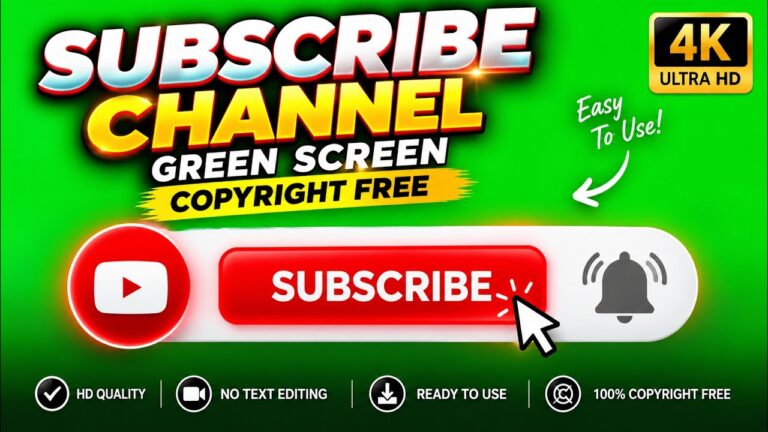
Download a free YouTube Intro Video with subscribe green screen animation. Perfect for YouTube, Shorts, Reels, tutorials, gaming, and creators.
If you are looking for a YouTube Intro Video that can make your videos feel more polished and encourage viewers to subscribe, a simple subscribe animation can make a surprisingly big difference. Instead of asking viewers to subscribe using only text or voice, you can visually highlight your channel’s subscribe button with an attractive animation.
In this post, we are sharing a free YouTube Intro Video featuring a subscribe green screen animation that you can use in your videos, YouTube Shorts, Reels, tutorials, gaming videos, vlogs, and other social media content.
The video is designed to be simple to use, even if you are not an advanced video editor.
Table of Contents
- What Is This YouTube Intro Video?
- Why Use a Subscribe Green Screen?
- Where Can You Use This Animation?
- How to Download the YouTube Intro Video
- How to Remove the Green Screen
- Video Editors You Can Use
- Tips for Using Subscribe Animations
- Final Thoughts
What Is This YouTube Intro Video?
This YouTube Intro Video is a ready-to-use subscribe animation created with a green screen background. The concept is straightforward: place the animation over your existing video and remove the green background using the chroma key or color key feature available in most modern video editors.
The animation can be especially useful when you want to remind viewers to subscribe without interrupting the main content.
For example, imagine you are explaining a web-development project. While demonstrating HTML, CSS, JavaScript, PHP, or another technology, you can briefly display the subscribe animation at a natural point in the video.
This gives viewers a visual reminder without requiring you to stop your tutorial and explain everything again.
Why Use a Subscribe Green Screen?
A subscribe animation is more engaging than a simple static subscribe image because it introduces movement into your video.
The green screen format also gives you much more flexibility. Once the green background is removed, the animation can be placed almost anywhere on the screen.
Some advantages include:
- Easy to add to existing videos
- Suitable for beginners
- Works with chroma key tools
- Useful for YouTube videos and Shorts
- Can be placed over tutorials and screen recordings
- Suitable for gaming content
- Useful for vlog and lifestyle videos
- Works with many popular editing applications
- Adds a professional call-to-action to your content
If you regularly publish tutorials or developer-focused videos, a short subscribe animation can become a useful part of your editing workflow.
Where Can You Use This YouTube Intro Video?
There is no single type of content where a subscribe animation works. You can use this YouTube Intro Video concept across many different formats.
YouTube Tutorials
Tutorial creators can use the animation between different sections of a tutorial. For example, after completing an important section of a coding project, you can display the subscribe animation for a few seconds.
YouTube Shorts
Short-form content moves quickly, so visual elements need to be simple and easy to understand. A short subscribe animation can work well as a call-to-action near the end of a Short.
Gaming Videos
Gaming creators can place a subscribe animation during transitions, after an exciting moment, or near the end of a video.
Vlogs
For vloggers, the animation can be displayed during an introduction, transition, or closing section.
Instagram Reels and Other Social Content
You can also use the animation in other video projects where a subscribe or follow-style call-to-action is appropriate. Always check the licensing and usage terms associated with the particular asset before using it commercially.
How to Download the YouTube Intro Video
You can watch the video and access the shared content from the following YouTube page:
🎬 Watch the Complete Tutorial
Follow the video tutorial to understand how the PHP shopping cart works from product listing to cart management.
Open the video, review the available information, and follow the download instructions provided with the video.
If you are creating your own collection of editing resources, it is a good idea to keep frequently used overlays organized in folders such as:
- Subscribe Animations
- Green Screen Overlays
- YouTube Intros
- Sound Effects
- Transitions
- End Screen Elements
This can save considerable time when you are working on multiple videos.
How to Remove the Green Screen
The main advantage of this type of animation is that you do not need to manually remove the background frame by frame.
Most popular video editors include a chroma key or color key feature.
The basic workflow is usually:
Step 1: Import your main video into the editor.
Step 2: Import the green screen subscribe animation.
Step 3: Place the animation on a video track above your main footage.
Step 4: Select the green background using the Chroma Key or Color Key tool.
Step 5: Adjust the similarity, tolerance, spill, or edge settings if necessary.
Step 6: Resize and position the subscribe animation.
Step 7: Preview the result and export your finished video.
The exact names of these controls vary between editing applications, but the overall process is very similar.
Video Editors You Can Use
You can work with green screen overlays in many popular video editing applications.
CapCut
CapCut is a convenient option for creators who primarily edit Shorts and social-media videos. Its chroma key tools make it relatively easy to remove a green background.
Adobe Premiere Pro
Premiere Pro provides more advanced controls for creators who want detailed control over keying, edges, color correction, and compositing.
After Effects
If you want to create more sophisticated visual compositions, After Effects provides extensive tools for chroma keying and motion graphics.
Filmora
Filmora is another beginner-friendly editor that can be useful for adding overlays and removing green screen backgrounds.
DaVinci Resolve
DaVinci Resolve is a powerful option for creators who want advanced editing, color grading, effects, and compositing features in one application.
You can also explore official learning resources from W3Schools if you are interested in improving your broader web-development and technical skills alongside content creation.
Tips for Using Subscribe Animations
Simply adding a subscribe animation is not enough. Timing is important.
Try to display the animation when the viewer has a natural reason to take action. For example, you could place it after delivering useful information, completing a tutorial section, or reaching an interesting point in the video.
Keep the animation short. A subscribe prompt should support your content rather than distract from it.
Position it carefully as well. Avoid placing the animation over important text, code, faces, buttons, or other elements that viewers need to see.
It is also worth maintaining consistency. If you use the same style of subscribe animation across your videos, viewers may gradually associate that visual style with your channel.
For web developers and coding creators, you can combine these video assets with useful tutorials on your website. For example, CodingStella publishes practical content covering HTML, CSS, JavaScript, Bootstrap, and PHP.
You can also connect this article with relevant internal tutorial pages on your website. Suggested internal links include:
- HTML Tutorials → link to your site’s HTML tutorial category
- CSS Tutorials → link to your site’s CSS tutorial category
- JavaScript Tutorials → link to your site’s JavaScript tutorial category
- PHP Tutorials → link to your site’s PHP tutorial category
- Web Development Tutorials → link to your site’s main tutorial/category page
These internal links help readers discover more content while also creating a stronger internal linking structure for search engines.
Suggested Image for the Post
Add a thumbnail or screenshot near the beginning of the article.
Image filename: youtube-intro-video-subscribe-green-screen.jpg
ALT text: YouTube Intro Video – Free Subscribe Green Screen Animation
The image should clearly show the subscribe animation or a frame from the video so visitors immediately understand what the resource is about.
Make Your Videos More Engaging
A good video does not always require complicated effects. Small elements such as subscribe animations, transitions, captions, lower thirds, and end screens can make a video feel more complete.
The important thing is to use these elements with purpose.
For example, if your channel focuses on web development, you can build a consistent visual identity across your coding tutorials. Use similar fonts, colors, transitions, intro animations, and subscribe prompts throughout your videos.
Over time, these small details can make your content look more professional and recognizable.
Final Thoughts
A YouTube Intro Video does not have to be complicated to be useful. A simple subscribe green screen animation can give creators an easy way to add a clear call-to-action to their videos.
Whether you create coding tutorials, gaming videos, vlogs, Shorts, product demonstrations, or educational content, a well-timed subscribe animation can fit naturally into your editing workflow.
If you are looking for a quick resource to experiment with, check out the video here:
Watch and Download YouTube Intro Video
Download or use the available resource according to its stated usage terms, add it to your preferred video editor, remove the green background, and position it where it feels natural.
And if you are a developer creating your own website or content platform, don’t forget to explore more practical web-development tutorials on CodingStella CodeKool.
Happy editing, and keep creating! 🎬💻
